
A powerful gaming PC can still struggle with freezing screens, delayed controls, or unexpected frame drops. Sometimes a game works perfectly until you reach a busy area. Other times, it refuses to open despite meeting the recommended system requirements.
These problems make gaming optimization advice appealing. However, not every trick found online is worth trying.
Tech Hacks PBLinuxGaming is a term associated with PBLinuxGaming, a website that publishes gaming-related information. Its content discusses ways to personalize games, adjust graphics, and deal with technical difficulties.
The term has also appeared in discussions about improving Linux gaming performance. Yet it is important to understand that PBLinuxGaming’s published advice and established Linux gaming utilities are not necessarily the same thing.
There is no independently verified evidence in the reviewed material showing that Tech Hacks PBLinuxGaming is a standalone application capable of automatically improving every game’s performance.
So, which gaming adjustments are actually useful?
The answer depends on what is causing the problem. This guide explores the meaning behind PBLinuxGaming, explains practical gaming improvements, and helps you recognize when a suggested fix deserves attention.
Understanding Tech Hacks PBLinuxGaming
The phrase Tech Hacks PBLinuxGaming originates from content associated with the PBLinuxGaming website.
In an article published on July 29, 2025, the website describes game-related adjustments involving customization, visual improvements, and technical support.
Its content also refers to files and applications that may change game settings or functionality.
However, the article does not provide enough independent information to establish the technical specifications, developer identity, or measured effectiveness of a single downloadable optimization tool.
This means the term should not automatically be treated as the name of verified gaming software.
A more useful interpretation is to examine the individual gaming techniques being discussed.
These can involve ordinary configuration changes, supported game modifications, graphics adjustments, or troubleshooting methods.
For Linux users, several independently documented programs provide practical ways to investigate gaming problems.
Knowing the difference prevents confusion between general advice and software with clearly defined functions.
The Three Areas That Shape Your Gaming Experience
Gaming performance is not controlled by one setting.
A computer must process game instructions, produce graphics, manage system resources, and respond to player input. Online games also depend on communication with remote servers.
Understanding these separate areas makes troubleshooting easier.
1. Hardware Performance
Your processor, graphics card, memory, and storage each perform different jobs.
The graphics card handles much of the visual rendering in modern games. The CPU manages many game calculations and instructions. Memory holds information needed while applications run, and storage supplies files and game assets.
A limitation in one area can affect the entire experience.
For example, lowering graphics quality might help when the GPU is overloaded. The same adjustment may do little if the game is primarily waiting on CPU calculations.
This explains why copying another player’s graphics settings does not always deliver the same result.
2. Software Compatibility
A game must communicate correctly with the operating system and its graphics components.
This becomes particularly important when running Windows games on Linux.
Some games offer native Linux support. Others rely on compatibility technologies such as Proton.
If the compatibility layer encounters a problem, the game might fail to start, display incorrect graphics, or behave unexpectedly.
These issues are not necessarily caused by insufficient hardware power.
3. Gameplay Responsiveness
Responsiveness describes how quickly the game reacts and how consistently it displays movement.
Two games can report the same average FPS while feeling noticeably different.
One may produce frames at consistent intervals, while the other pauses briefly between certain frames.
This is why performance monitoring should consider more than the highest number shown by an FPS counter.
First Identify the Problem, Then Choose a Fix
One of the biggest mistakes in gaming troubleshooting is making changes before identifying the symptom.
A poor experience does not always mean the computer needs to be faster.
Consider these situations:
| What you notice | What it may indicate | Where to investigate |
|---|---|---|
| Movement looks consistently slow | Low rendering performance | Graphics workload and hardware usage |
| Gameplay pauses briefly | Irregular frame times or loading issues | Frame-time monitoring |
| Controls respond late | Input or display latency | Controller and display settings |
| Game closes unexpectedly | Software or compatibility problems | Game files, drivers, and logs |
| Online players appear to jump around | Network instability | Ping and packet loss |
| Game launches on the wrong graphics chip | Incorrect GPU selection | System graphics preferences |
These are possible explanations rather than definite diagnoses.
The next step is to gather enough information to narrow down the cause.
Making Linux Games Work Through Proton
Windows and Linux do not use identical application interfaces.
A game developed for Windows may depend on features that are not directly available on Linux.
Proton helps bridge that gap.
Developed by Valve, Proton is based on Wine and includes additional components intended to improve Windows game compatibility.
It works with Steam Play to help supported Windows games operate on Linux systems.
You can learn how the technology is maintained through Valve’s official Proton project.
When Should You Change Proton Settings?
If a game already launches correctly and performs well, there may be no reason to alter its compatibility settings.
Changing Proton becomes more relevant when a Windows game fails to launch, encounters an unusual graphics problem, or has a known issue with the current version.
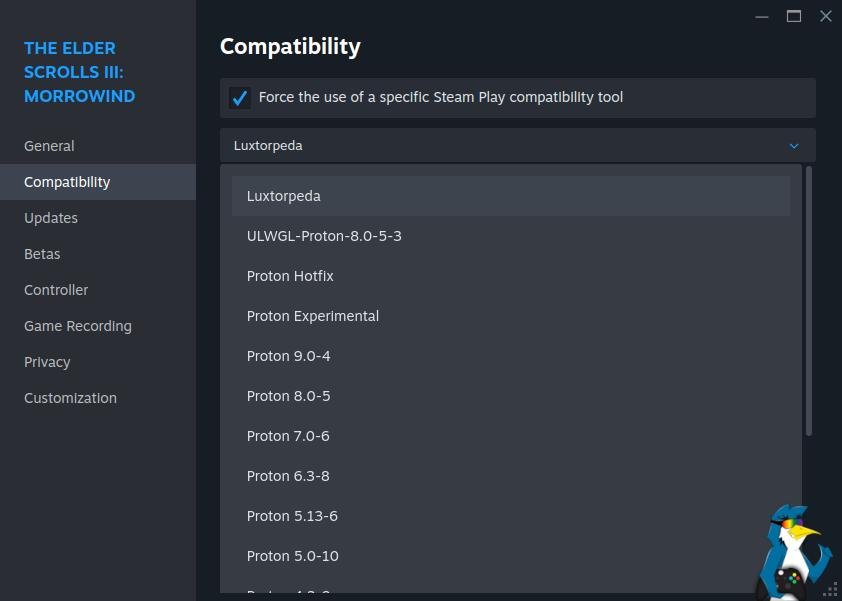
Steam allows users to select a specific compatibility tool for individual games.
To find this option:
- Open your Steam Library.
- Select the game experiencing difficulties.
- Open its Properties menu.
- Find the Compatibility section.
- Choose a specific Steam Play compatibility tool if necessary.
- Restart the game and check its behavior.
Different Steam client versions may display these options slightly differently.
For additional guidance, Canonical provides instructions for configuring Proton and Steam Play.
Proton does not guarantee universal compatibility. Some games still have restrictions involving launchers, online services, or anti-cheat systems.
Native Linux Game or Windows Version?
Before forcing Proton, check whether the game already provides a Linux version.
A native version may avoid the need for Windows compatibility translation.
However, native support does not automatically mean better performance in every situation.
Game updates, graphics APIs, engine quality, and developer support can all affect results.
Choose the version that is supported and works reliably on your particular system.
Use Performance Data to Discover What Is Wrong
Suppose a game appears to run smoothly when standing still but begins stuttering while moving through a detailed environment.
Simply looking at average FPS might not explain the problem.
A performance overlay can provide additional information.

MangoHud Helps Reveal Frame-Time Problems
MangoHud is an open-source utility designed to display performance information in supported Vulkan and OpenGL applications.
Depending on the hardware and configuration, it can show FPS, CPU usage, GPU activity, memory statistics, temperatures, and frame timing.
The official MangoHud documentation explains its supported features and setup methods.
Once the software is installed correctly, a common Steam launch option is:
mangohud %command%
Not every application environment supports the same setup method, so check the relevant installation instructions.
What Should You Watch While Playing?
The most useful measurements depend on the symptom.
For constantly poor performance, monitor how heavily the CPU and GPU are being used.
For short interruptions, watch the frame-time graph.
If performance becomes worse during longer sessions, examine resource usage and supported temperature readings.
It also helps to observe whether the problem appears during particular events, such as loading new environments.
A monitoring tool does not repair the problem by itself.
Its purpose is to show what is happening so that later adjustments are based on evidence.
Can GameMode Make Linux Gaming Smoother?
Linux manages processor time, running applications, and power-related behavior through different system components.
GameMode is a utility that allows games to request temporary performance-related adjustments.
It is developed by Feral Interactive and supports configurable system optimizations.
However, its effect depends on the operating system and existing configuration.
Some computers may already manage gaming workloads effectively without additional adjustments.
According to the official GameMode project, supported Steam games can request the utility through this launch option after installation:
gamemoderun %command%
This does not mean GameMode will increase FPS in every game.
It may be more useful in situations where current power-management or scheduling behavior is affecting performance.
The sensible approach is to measure the game before enabling GameMode and then compare its behavior afterward.
If there is no meaningful difference, additional optimization may not be necessary.

Graphics Tweaks That Are Worth Understanding
Graphics options often use technical names that make their effects difficult to predict.
Instead of lowering everything immediately, identify which features are likely to matter for your situation.
Resolution and Render Scale
Resolution determines the number of pixels displayed.
A higher rendering resolution can improve image detail but also creates more work for the GPU.
Some games provide a render-scale setting that changes internal rendering resolution without changing the display’s selected resolution.
Reducing render scale may improve performance in GPU-limited situations, although the resulting image can become softer.
Image upscaling may help recover some visual quality when supported by the game and hardware.
Shadows and Lighting
Realistic shadows and complex lighting contribute to the appearance of a scene.
They can also demand substantial processing resources.
Reducing expensive effects may improve performance without changing the entire graphics preset.
The difference depends on the game engine and the scene.
Texture Quality
Texture quality primarily affects the visual detail of surfaces.
Higher-quality textures often require more graphics memory.
When available VRAM is insufficient, loading and memory-management behavior may cause noticeable issues.
Lowering textures can help in those situations, but it may have little effect on FPS when sufficient graphics memory is already available.
Frame Rate Limits
An uncapped frame rate is not always necessary.
Some players prefer a frame rate that their system can maintain consistently rather than allowing large fluctuations.
Supported frame limiters can be useful for managing frame delivery or resource usage.
However, the result depends on the display, game engine, synchronization settings, and chosen limit.
There is no single frame cap that suits every setup.

A Better Way to Compare Gaming Settings
Optimization becomes confusing when several changes are made together.
A short comparison session can provide clearer information.
Start by selecting a location or gameplay sequence that is easy to repeat.
Record the game’s resolution, graphics preset, average FPS, and any noticeable problems.
Next, change only one option.
For example, reduce shadow quality while keeping the other settings unchanged.
Return to the same part of the game and observe the results.
Compare performance and visual quality, not just one numerical reading.
If the change improves your experience, keep it. Otherwise, consider restoring the original setting.
You can use a simple record:
| Test | Setting changed | What to observe |
|---|---|---|
| Baseline | Original configuration | Normal performance |
| Test A | Lower shadow quality | GPU workload and smoothness |
| Test B | Lower render scale | FPS and image sharpness |
| Test C | Enable GameMode | Consistency during gameplay |
The table describes a testing method, not measured results.
Testing one variable at a time helps explain the outcome and makes it easier to reverse unsuccessful changes.
When the Game Runs but Something Still Feels Wrong
Some frustrating gaming problems have little connection to average FPS.
A computer can render graphics correctly while another part of the experience remains unreliable.
Controller Buttons Are Not Responding Correctly
Begin with the game’s controller support information.
Check whether the controller is detected by the operating system and the game launcher.
If you use Steam, its controller settings may help identify supported devices and configurations.
Canonical’s Steam documentation also includes information about setting up a controller on Ubuntu.
Controller support varies by model, connection method, and game.
Avoid installing unknown controller drivers before checking the options already available through your distribution.
Audio Suddenly Stops Working
Missing audio can result from device selection, application settings, or audio-service problems.
First, check whether other applications still produce sound.
If only one game is affected, review its audio output settings.
If all applications are silent, inspect the operating system’s selected output device and relevant audio settings.
This helps distinguish a game-specific issue from a wider system problem.
A Game Takes Too Long to Load
Long loading times can have several causes, including storage performance, game design, large assets, or background disk activity.
Check whether the game is installed on suitable storage and whether the drive has sufficient free space.
An SSD can improve loading behavior compared with slower mechanical storage in workloads that depend heavily on disk access.
However, faster storage does not automatically increase FPS during gameplay.
These are separate performance measurements.
The Game Works Offline but Not Online
Online compatibility depends on more than rendering and launching the game.
Some multiplayer titles use anti-cheat systems or additional services that require specific support.
A game may launch through Proton while certain online functions remain unavailable.
Check the developer’s current support information and the game’s platform requirements.
Do not rely on unauthorized workarounds that interfere with game security systems.
Other Useful Software for Linux Players
Steam is widely used for PC gaming, but players may also have games in other libraries.
Different launchers offer different features, and not every launcher solves the same problem.
Heroic Games Launcher
Heroic Games Launcher is an open-source project that supports managing games from Epic Games, GOG, and Amazon Games.
It provides options for working with compatibility software on Linux.
The project’s supported platforms and features are described in the Heroic Games Launcher documentation.
Heroic can be convenient for managing supported libraries, but individual games may still have compatibility limitations.
What About Gaming-Focused Linux Distributions?
Some Linux distributions are designed to provide a convenient gaming environment.
They may include gaming-oriented configuration choices, useful tools, or particular update policies.
However, installing a gaming-focused distribution does not guarantee that the same game will perform better than it does on another properly configured Linux system.
Hardware support, driver versions, software compatibility, and user preferences are important considerations.
For someone who already has a stable installation, investigating one game-specific problem may be easier than replacing the entire operating system.
Are PBLinuxGaming Downloads and Modifications Trustworthy?
The original PBLinuxGaming article describes using files or applications to change games.
That does not establish that every file associated with the topic has been independently tested or approved by the relevant game developer.
Before downloading unfamiliar software, check who maintains it and what changes it is supposed to make.
A trustworthy project should ideally provide meaningful documentation, compatibility information, and a clear way to obtain support.
Be cautious when a download promises dramatic performance improvements without showing how those claims were tested.
Unknown modifications can introduce software conflicts or unwanted behavior.
It is also important to follow a game’s modification rules, particularly in online multiplayer environments.
For another example of separating documented gaming technology from unclear online claims, read LootNexis’s article about Tommy Jacobs Gaming Eyexcon and verified gaming features.
The important lesson is that a convincing article title does not replace technical evidence.
How to Decide Whether a Gaming Tip Is Actually Helpful
The internet contains many gaming recommendations, but usefulness depends on context.
Before following a guide, ask whether its instructions match your particular game, hardware, and operating system.
A graphics setting recommended for a high-end desktop may not make sense for a laptop with integrated graphics.
Likewise, a Proton workaround intended for one game may cause problems when copied into another.
Useful advice normally explains its purpose.
It should make clear whether a change affects compatibility, performance, appearance, or system behavior.
That distinction helps prevent unnecessary experimentation.
There is also a difference between making a game perform better and becoming more skilled at playing it.
Someone who struggles with game mechanics might benefit from learning controls, map layouts, or strategies rather than changing computer settings.
For that side of gaming improvement, LootNexis has a guide covering gaming tutorials, controls, and practical gameplay skills.
A good solution addresses the actual difficulty instead of assuming every frustrating moment comes from hardware.
Common Claims About Gaming Optimization That Need Context
Certain claims appear repeatedly in online gaming discussions.
Some are based on real technical ideas but become misleading when presented without limitations.
Claim: Every gamer needs a special performance kernel.
A different Linux kernel may affect particular workloads, but there is no universal requirement to replace the default kernel for gaming.
Claim: Higher FPS always means smoother gameplay.
Average FPS does not fully describe frame pacing. Irregular frame delivery can make gameplay feel uneven despite a seemingly good average.
Claim: Proton fixes every Windows game.
Proton supports many games, but compatibility still varies. Some titles have unresolved problems or unsupported online features.
Claim: Closing every background service improves gaming.
Unnecessary heavy workloads can affect performance. However, ordinary system services are not automatically harmful, and disabling essential components may create instability.
Claim: An optimization tool works equally well on every computer.
Hardware, drivers, power settings, and game engines differ. A setting that helps one system may have no useful effect on another.
Understanding these limitations makes gaming advice easier to evaluate.
A Practical Routine Before Your Next Gaming Session
You do not have to rebuild your Linux setup every time a game behaves badly.
A small routine can help you avoid unnecessary changes.
First, make sure the game is installed correctly and that required software is available.
Check whether the operating system recognizes your intended graphics hardware.
Review the game settings and select a reasonable configuration for your computer.
If the game uses Proton, begin with a suitable default configuration rather than forcing an unfamiliar version immediately.
Keep unnecessary heavy applications from competing for resources during demanding games.
If performance problems continue, use monitoring software to identify a pattern.
Finally, keep track of the changes you make.
A short record of successful and unsuccessful adjustments can save considerable time when the same issue appears again.
Frequently Asked Questions
What exactly does Tech Hacks PBLinuxGaming mean?
Tech Hacks PBLinuxGaming is a phrase connected to gaming information published by the PBLinuxGaming website. Its content discusses game customization, visual improvements, and technical tips. It should not automatically be interpreted as the name of a verified standalone optimization program.
Is there an official Tech Hacks PBLinuxGaming download?
The reviewed website content mentions files and applications, but it does not establish a clearly documented standalone application with independently verified specifications and performance results. Check the original publisher and technical details before downloading anything associated with the name.
Can these gaming tips make an old computer faster?
Some configuration changes may help an older computer run supported games more comfortably. Results depend on the game, hardware limitations, and existing settings. Software adjustments cannot replace every capability of newer hardware.
What is the difference between Proton and GameMode?
Proton focuses on running supported Windows games on Linux. GameMode requests certain temporary system adjustments while applications run. The two tools serve different purposes and are not interchangeable.
Why does my game stutter even when FPS looks high?
A high average frame rate can hide irregular frame times. Brief loading delays, memory pressure, or other interruptions may cause uneven gameplay. Frame-time monitoring can provide more useful information than average FPS alone.
Does switching Linux distributions improve gaming performance?
It can change the software environment, drivers, and available tools, but an improvement is not guaranteed. A stable, correctly configured distribution may already provide good gaming performance.
Can Linux run games from Epic Games or GOG?
Some games from these stores can run on Linux using compatible software and launchers such as Heroic Games Launcher. Actual support depends on the individual game, launcher requirements, and other technical restrictions.
Should I use every optimization suggested by a gaming website?
No. Choose adjustments that address a clearly identified problem. Test their effect, follow trustworthy documentation, and avoid unnecessary modifications that could introduce instability.
Final Verdict
Tech Hacks PBLinuxGaming is best approached as a gaming advice topic rather than a guaranteed solution for slow or unstable games.
The PBLinuxGaming website discusses customization and technical adjustments, but readers should distinguish those descriptions from tools with established documentation and independently verifiable features.
For Linux players, solutions often begin with understanding the problem.
A game that will not launch may need compatibility troubleshooting. A game with irregular movement may require frame-time investigation. A game that looks slow during demanding scenes may benefit from carefully adjusted graphics settings.
These problems do not share one universal fix.
The most useful gaming improvements come from matching the solution to the symptom, checking reliable documentation, and keeping changes manageable.
That approach may not sound as exciting as a secret performance hack, but it offers a clearer path toward stable, enjoyable gameplay.